Cut list on the Lock Screen and widgets
At the saw you want one thing on the phone: the next cut. CUT LIST puts a calculator's list on the Lock Screen. It shows the cut you are on and the one after it, with a tick button you can hit without unlocking the phone. The Next Cut widget shows the same list on the Home Screen, and SEND LIST hands a tick-off copy to whoever is cutting.
Step by step
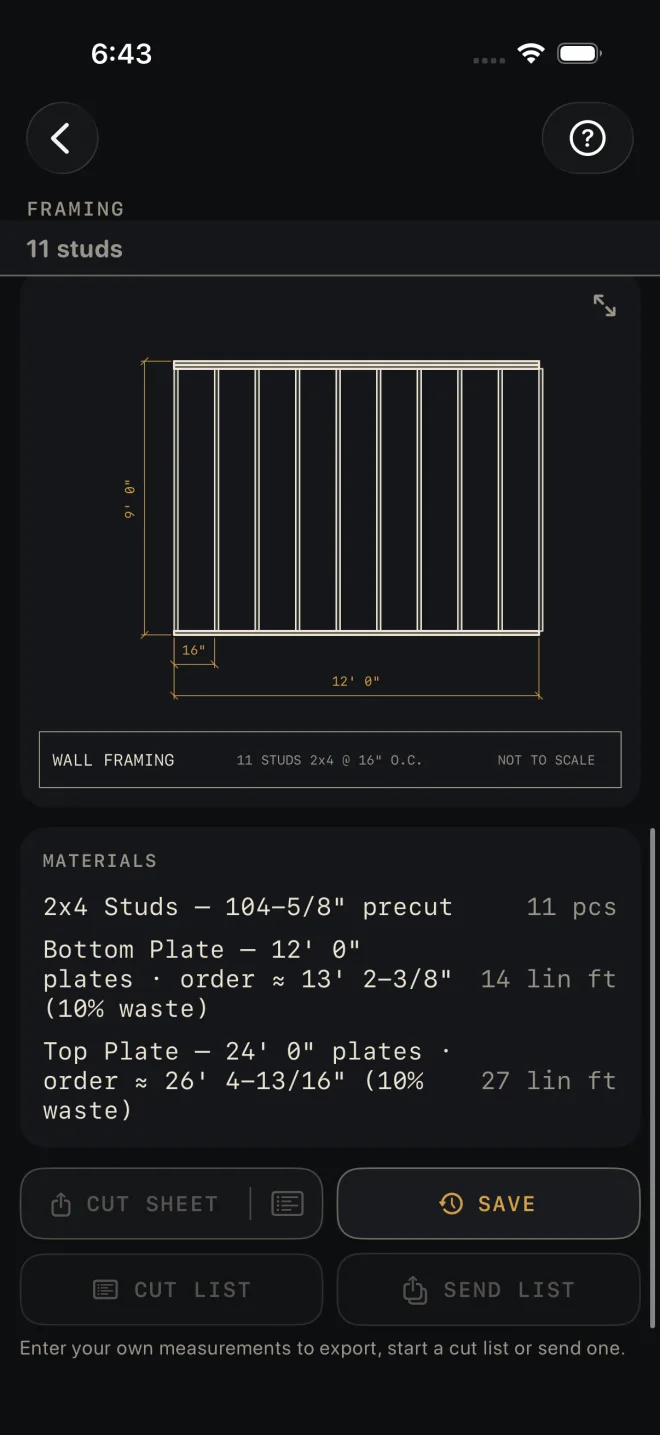 1
1
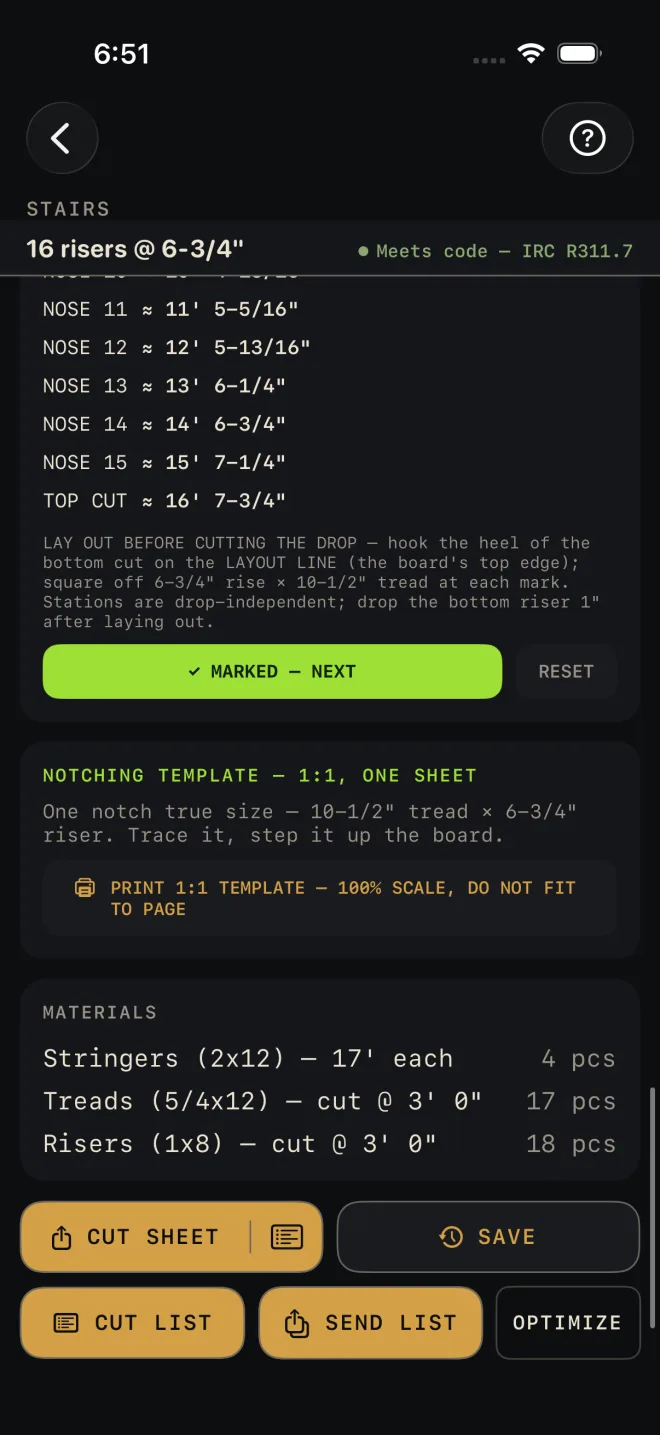 2
2
- Enter your own measurements. While every input is still a sample value the row is dimmed and the screen says "Enter your own measurements to export, start a cut list or send one."
- Scroll to the bottom and tap CUT LIST. The button changes to CUT LIST ON and End list appears under it. If iOS asks whether to allow Live Activities from Housewright Calc, allow it.
- Lock the phone. The Lock Screen shows the calculator's name, a count of ticks done out of the total, the cut you are on in large figures, and a smaller line starting "then" with the cut after it.
- Make the cut, then tap the round tick. One tap is one piece. A line with several pieces shows how far through it you are, such as "3 of 11 cut", and moves to the next line when the last piece is ticked. Lines that are not counted in pieces, such as plate stock in linear feet, take one tap.
- After the last tick the Lock Screen reads "All cuts done". It stays until iOS clears it or you swipe it away.
- To stop early, open the calculator and tap End list. That clears the Lock Screen and the widget together.
What goes on the list
- Each line of the calculator's material list becomes a line of the cut list, with the same description and length. Quantities are rounded up to whole pieces.
- Where the material list includes waste, the pieces on the cut list include it too. The Lock Screen marks this INCL. WASTE.
- From the Cut List Optimizer the list has one line per board, with that board's cuts in order. It carries the first 30 boards.
- Only one cut list runs at a time. Starting one from another calculator ends the first. Tapping CUT LIST ON again starts the same list over from zero.
CUT LIST is on Framing, Rough Opening, Header Sizing, Beam Sizing, Floor Joist, Roof Rafter, Hip & Valley, Stairs, Deck, Fence, Arc / Circle, Board Feet and the Cut List Optimizer.
On the Dynamic Island and a locked phone
On an iPhone with a Dynamic Island, the island shows a scissors mark and the current cut. Touch and hold it to see the count, the next cut and the tick button.
While the phone is locked and has not recognised you, iOS hides the description and the dimension of the cut. The count stays visible. They come back as soon as the phone knows it is you.
The Next Cut widget
Next Cut shows the running list as a widget. It keeps working after you swipe the Lock Screen banner away, and when Live Activities are switched off.
- Home Screen, small or medium. Shows the current cut and a tick button that checks it off. On the medium size the button reads CUT, and the cuts coming up are listed beside it.
- Lock Screen, rectangular or inline. Shows the current cut and the count. These are for reading only. Tick off on the Lock Screen banner or the Home Screen widget.
- With no list running the Home Screen widget reads "No active cut list" and the Lock Screen widget reads "No cut list".
The Fraction Calculator widget
Fraction Calculator is a large Home Screen widget with a working feet-inch-fraction keypad. The keys work right on the Home Screen, without opening the app. If the display reads "error — AC to reset" or "full — AC to reset", tap AC. Without Pro the widget shows the display with a lock, and tapping it opens the app.
Adding a widget
Home Screen
- Touch and hold an empty part of the Home Screen until the icons jiggle.
- Tap Edit at the top left, then Add Widget. On older versions of iOS, tap the + button instead.
- Search for Housewright Calc. Pick Next Cut or Fraction Calculator.
- Pick a size. Next Cut comes in small and medium. Fraction Calculator is large only.
- Tap Add Widget, drag it where you want it, then tap Done.
Lock Screen
- Touch and hold the Lock Screen, then tap Customize and choose the Lock Screen.
- Tap the widget row under the clock. For the one-line version, tap the date line above the clock.
- Choose Housewright Calc, then Next Cut. Tap Done.
Sending the list to someone else
SEND LIST shares the same list as a single web page file, named after the calculator. Send it by AirDrop or Messages. The person cutting needs no app, no account and no signal to open it, and each piece has its own tick box. Opened in a browser on Android or a computer, the page keeps its ticks and counts them. In the preview on an iPhone the boxes tick while the page is open but are not saved.
If it doesn't work
- The buttons are dimmed. Every input is still the sample value. Change any input to your own measurement.
- The buttons show a lock. The cut list needs Pro.
- "Nothing to list — this result has no material rows." This result has no material list, for example a header or beam that needs an engineer. SEND LIST is dimmed for the same reason and says "Nothing to send".
- "Couldn't start — the list may be too large, or Live Activities are off in Settings › Housewright Calc." Open the iPhone's Settings, find Housewright Calc, and switch Live Activities on. The Next Cut widget still gets the list when Live Activities are off, so you can work from that.
- The button says CUT LIST ON but nothing is on the Lock Screen. Leave the calculator and come back, or switch away from the app and return. The button re-checks whether a list is really running each time the screen appears.
- A widget says "Open Housewright Calc to refresh". The app has not been opened for a long time, so the widget can no longer confirm Pro. Open the app once.
- A tick on an old widget did nothing. A tick only counts against the list that widget was showing. If you started a different list a moment ago, wait for the widget to update and tap again.